Connect Dodo Payments
Point Dodo Payments at Clakta with a webhook so your payments, refunds and chargebacks arrive automatically, and each sale is matched to the visitor who made it.
Dodo Payments sends your payments, refunds and chargebacks to Clakta through a webhook: Clakta gives you an address, and you paste it into Dodo.
Connect
In Clakta:
- Open your project and go to Project settings → Sales platforms.
- Find Dodo Payments and click Connect.
- Give the connection a name you will recognise later, like
Main account, then click Create connection. - Copy the Webhook URL that appears. Keep this window open.
In Dodo Payments:
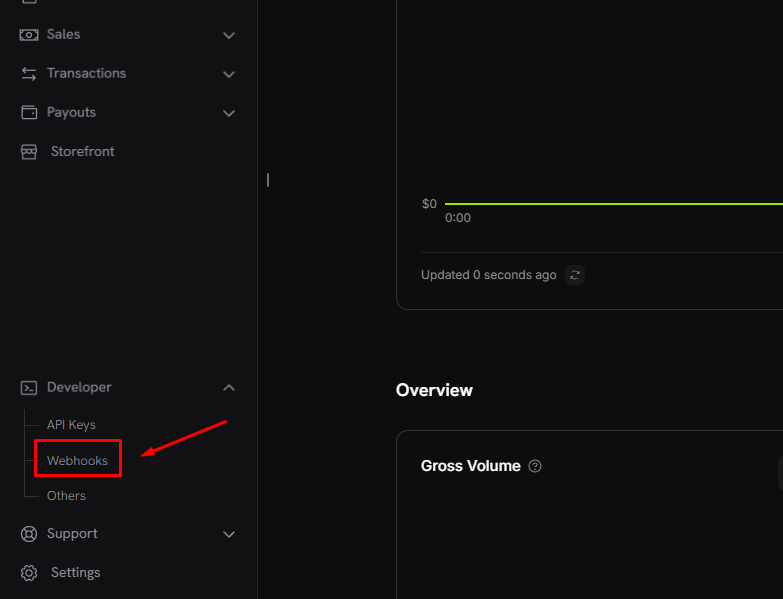
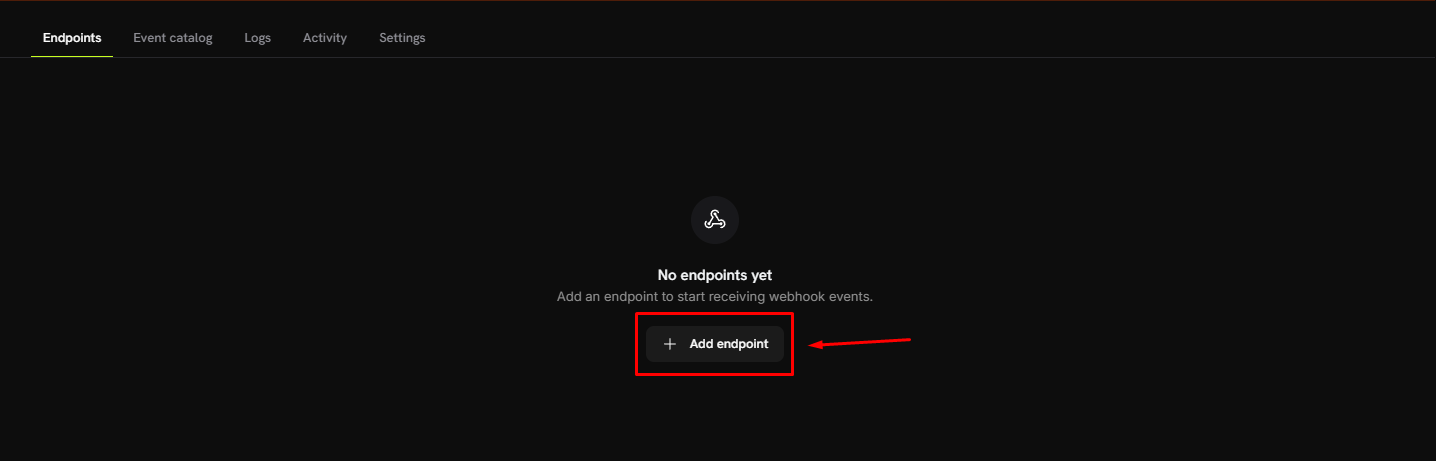
- Go to Developer → Webhooks → Add endpoint.
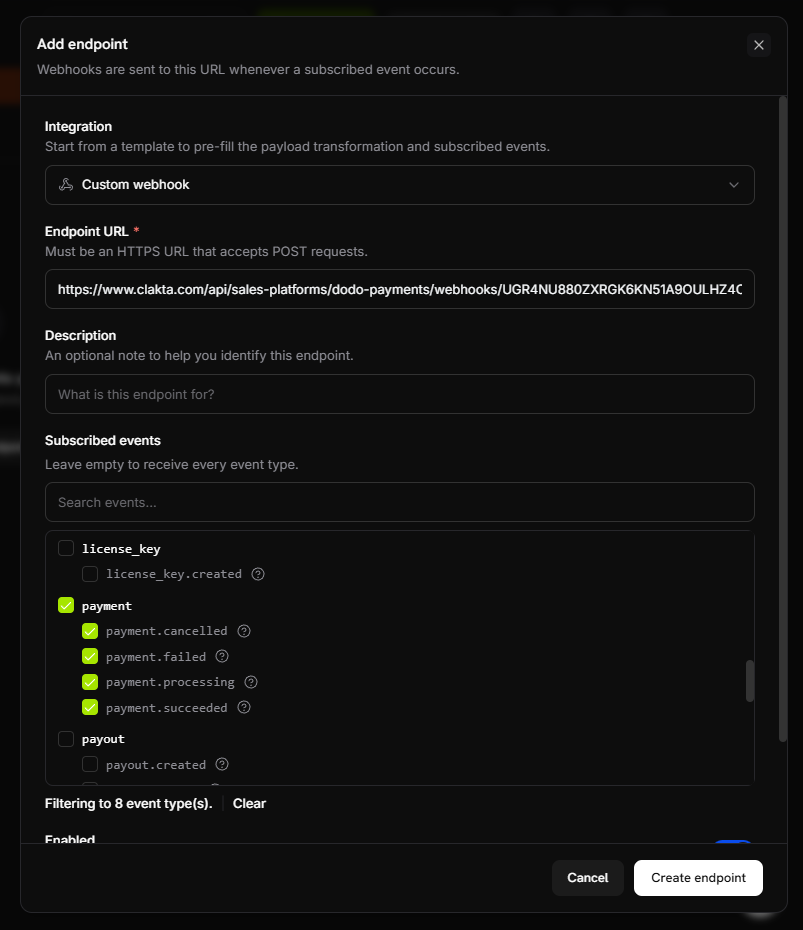
- Paste the URL you copied.
- Tick the payment, refund and dispute events (the full list is below), and save.
| Event | Why Clakta needs it |
|---|---|
payment.succeeded | Records the sale. |
payment.processing | Shows a sale that is pending. |
payment.failed | Records a failed attempt. |
payment.cancelled | Records an abandoned payment. |
refund.succeeded | Marks a sale refunded. |
dispute.accepted | Chargeback you accepted. |
dispute.lost | Chargeback you lost. |
dispute.won | Chargeback you won. |
Ticking extra events does no harm: Clakta ignores anything it does not use.
- Open the endpoint's Overview tab and copy the signing secret Dodo shows
there. It starts with
whsec_.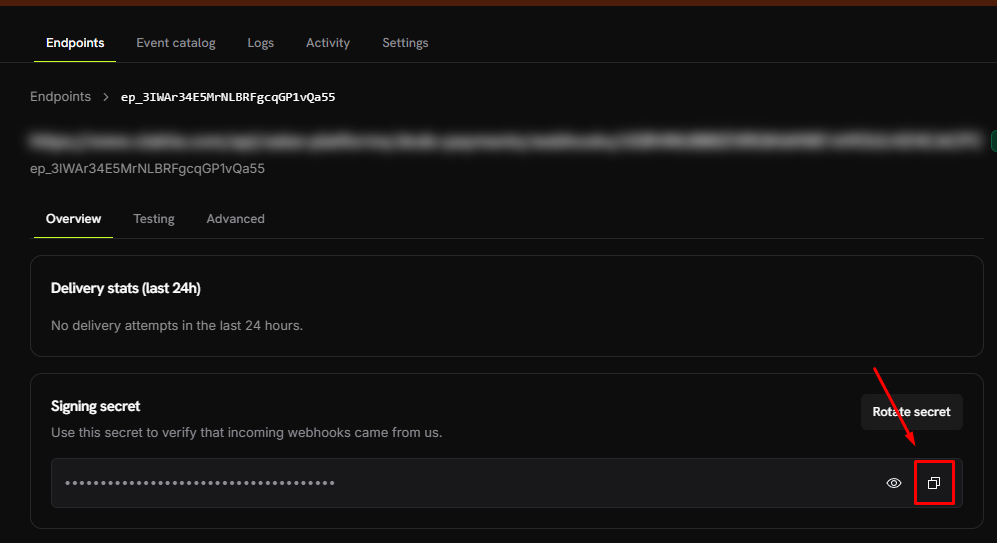
Back in Clakta:
- Paste the signing secret and click Finish.
The card now says Added. New sales appear within a few seconds of being paid. Sales from before you connected are not imported.
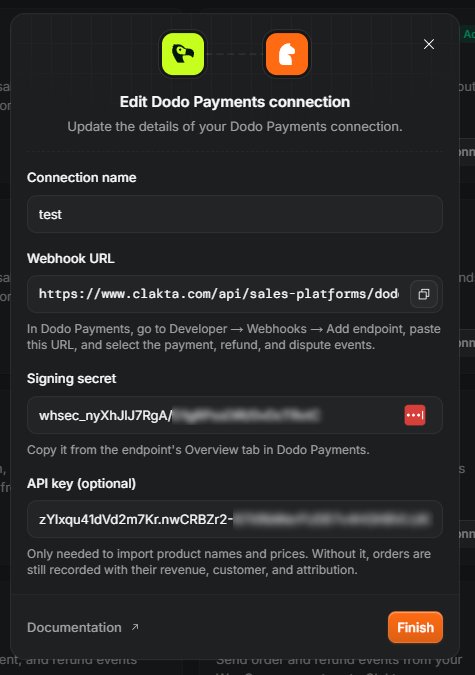
Show product names and prices (optional)
By default Clakta records the money and the customer, but not what was bought: Dodo's messages carry product IDs, not names.
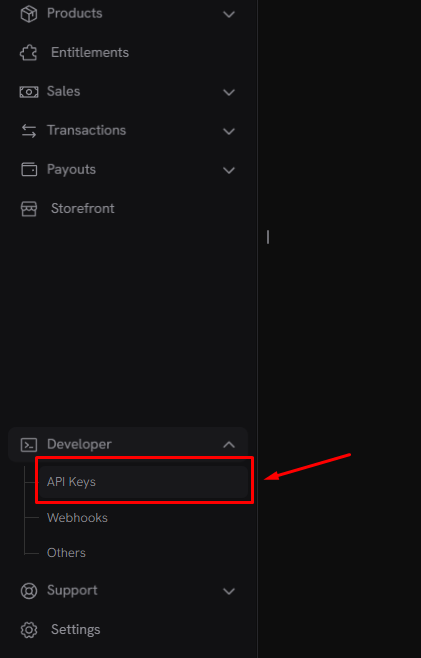
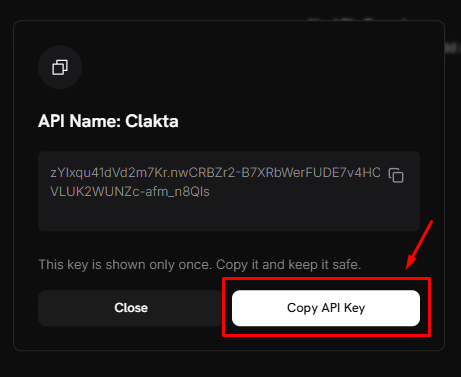
To fill that in, add an API key. In Dodo, go to Developer → API Keys, create one, and paste it into the API key (optional) field on the Clakta connection. Clakta then looks up the product names and prices for each sale.
Skip this and everything else still works: revenue, customer and source are all recorded either way.
Match sales to the visitors who made them
When your code creates the Dodo payment link or checkout, add a metadata
field named clakta_session_id and put the visitor's Clakta session in it:
Read that value in the browser with clakta.getSessionId() and send it to your
server along with the rest of the checkout request.
Test mode and live mode
Dodo keeps test and live separate, and so does Clakta. A webhook you create in test mode only ever receives test sales.
It is perfectly fine to have two connections: one for test, one for live. Give them names that tell them apart, because both will appear on the card.
Common questions
Related articles
Connect Shopify
Install the Clakta app on your Shopify store. It sets up checkout tracking, imports your recent orders and matches each sale to the ad that produced it.
Connect Lemon Squeezy
Send your Lemon Squeezy orders, renewals and refunds to Clakta over a webhook, and credit each sale to the visitor who made it.
Connect Paddle
Send your Paddle sales, renewals and refunds to Clakta over a webhook, and credit each sale to the visitor who made it.