Connect Shopify

Install the Clakta app on your Shopify store. It sets up checkout tracking, imports your recent orders and matches each sale to the ad that produced it.

Shopify works differently from the other platforms here. Instead of pasting keys into Clakta, you install the Clakta app on your store. The app sets itself up: it adds its own checkout tracking, imports your recent orders, and starts sending new ones.

There is nothing to copy and paste at any point.

Install and connect

Start in Clakta:

  1. Open your project and go to Project settings → Sales platforms.
  2. Find Shopify and click Connect, then Install on Shopify.
  3. Choose your store and approve the permissions Shopify shows you.

Finish in Shopify:

  1. In your Shopify admin, open Apps → Clakta.
  2. Click Connect to Clakta and choose the project this store should report to.
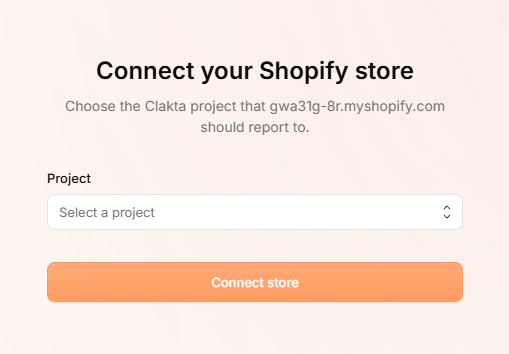
connect shopify store

The app now shows Connected, and the Shopify card in Clakta shows Added.

Turn on storefront tracking

This step is optional but strongly recommended, and it takes about thirty seconds. Shopify turns app embeds off by default, so nobody can do it for you.

In your Shopify admin, go to Online Store → Themes → Customize → App embeds and switch on Clakta tracking. The Clakta app in your Shopify admin has a button that takes you straight there.
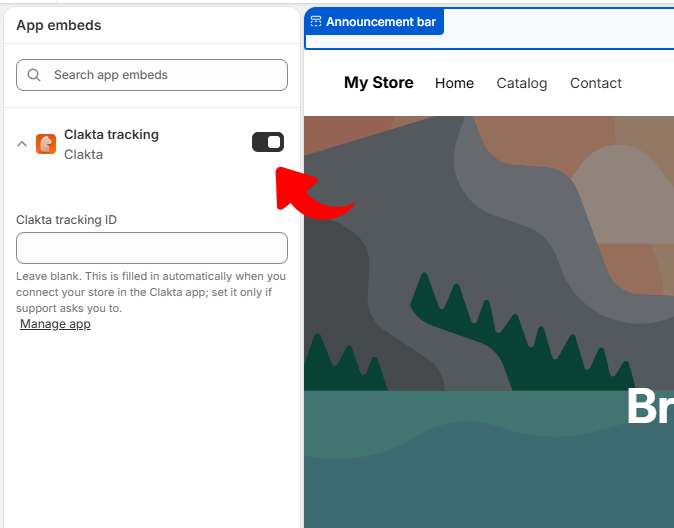
allow clakta app embed

Turning it on gives you two things:

  • Everything before checkout — product views, carts, and which pages people browse.
  • Reliable ad matching — the ad click is written onto the cart, so it survives all the way into the order. This is the only method that works when checkout happens somewhere other than your storefront, such as Shop Pay or the Shop app.

Leave it off and Clakta still records your sales — it simply knows less about what happened before the purchase.

What happens on its own

Once the store is connected, Clakta does three things without being asked:

  • Installs the checkout pixel. This is what ties a purchase to the visitor who made it. No theme editing, no ID to paste.
  • Imports your recent orders, so your dashboard is not empty on day one.
  • Starts receiving new orders as they are placed, paid, cancelled or refunded.

You can watch the import progress in the Clakta app inside Shopify, under Order history.

What Clakta records

  • How much the order was for, in the currency it was paid in
  • What was bought, with product names and prices
  • Whether it was paid, cancelled or refunded
  • Which visitor, which ad and which campaign it came from

Clakta re-checks recently changed orders every hour, so if Shopify ever fails to deliver a message, the order still turns up.

Refunds and cancellations

Refund an order in Shopify and the sale is marked refunded in Clakta. Refunding only part of an order leaves it as paid, because Clakta records each sale as a single amount. Cancelling an order marks it cancelled.

Privacy-friendly projects

If your project uses privacy-friendly tracking, connect the store anyway — but be aware that Shopify's checkout runs in a sandbox that cannot reproduce the daily identifier that mode relies on. Orders are recorded, but they will not join up with the browsing that led to them.

The Clakta app tells you if this applies to your store. Switching the project to full attribution fixes it.

Disconnect

You can do this from either side, and both do the same thing:

  • In Shopify, open the Clakta app and click Disconnect.
  • In Clakta, go to Project settings → Sales platforms, open the menu on the Shopify card and choose Delete.

Clakta removes its checkout pixel from your store and stops recording new orders. Orders already recorded stay in Clakta — disconnecting never deletes your history.

If you also want the app gone entirely, uninstall it from Apps in your Shopify admin.

Common questions

Related articles